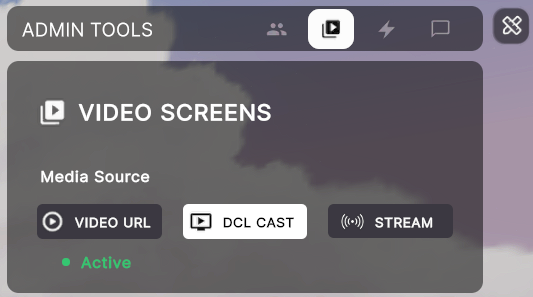
 推流可在 Worlds 和 Genesis City 中使用,场景端没有观众数量限制。
## 配置场景
以下步骤同时适用于 DCL Cast 和 Stream 两种方式:
1. 添加一个 **视频屏幕** 将智能物品添加到你的场景中。

2. 添加一个 **管理工具** 智能物品,并启用 **视频屏幕** 部分。从下拉菜单中选择每个屏幕,并为管理界面起一个友好的名称。

3. 发布你的场景(World 或 Genesis City),并以具有管理员权限的用户身份进入。

场景发布后,你可以以具有管理员权限的用户身份进入并配置推流设置。
{% hint style="info" %}
**💡 提示**:如果你添加多个 Video Screens 来显示同一个视频,请将除一个之外的所有源都配置为指向同一个视频播放器,参见 [多个视频屏幕](/creator/content-creator-zh/chang-jing-bian-ji-qi/jiao-hu-xing/video-screen.md#multiple-video-screens) 了解更多详情。
{% endhint %}
## DCL Cast(简单)
### 分享应用访问权限
以管理员用户身份进入你已发布的场景,并打开管理面板。选择 **视频** 选项卡,然后选择 **DCL Cast** 功能。
推流可在 Worlds 和 Genesis City 中使用,场景端没有观众数量限制。
## 配置场景
以下步骤同时适用于 DCL Cast 和 Stream 两种方式:
1. 添加一个 **视频屏幕** 将智能物品添加到你的场景中。

2. 添加一个 **管理工具** 智能物品,并启用 **视频屏幕** 部分。从下拉菜单中选择每个屏幕,并为管理界面起一个友好的名称。

3. 发布你的场景(World 或 Genesis City),并以具有管理员权限的用户身份进入。

场景发布后,你可以以具有管理员权限的用户身份进入并配置推流设置。
{% hint style="info" %}
**💡 提示**:如果你添加多个 Video Screens 来显示同一个视频,请将除一个之外的所有源都配置为指向同一个视频播放器,参见 [多个视频屏幕](/creator/content-creator-zh/chang-jing-bian-ji-qi/jiao-hu-xing/video-screen.md#multiple-video-screens) 了解更多详情。
{% endhint %}
## DCL Cast(简单)
### 分享应用访问权限
以管理员用户身份进入你已发布的场景,并打开管理面板。选择 **视频** 选项卡,然后选择 **DCL Cast** 功能。
 你会看到两个链接,可以复制并与他人分享。
* **直播发言者**:此链接供发言者将他们的视频投放到场景中。
你会看到两个链接,可以复制并与他人分享。
* **直播发言者**:此链接供发言者将他们的视频投放到场景中。
❗警告:请将推流链接视为机密,仅与你信任的人分享。如有需要,可在演讲者之间重置该链接。
完成推流后,关闭 DCL Cast 浏览器标签页以释放通道。
 如果因任何原因需要重置房间,请点击 **重置房间** 按钮生成一个新的房间。当前正在直播的任何人都将断开连接。
 ### 使用 DCL Cast 应用
当有人将发言者链接粘贴到浏览器中时,他们会看到如下界面:
### 使用 DCL Cast 应用
当有人将发言者链接粘贴到浏览器中时,他们会看到如下界面:
 浏览器会请求共享摄像头和麦克风的权限。你也可以配置用于直播的不同输入设备。
{% hint style="info" %}
**📔 提示**:请使用 Google Chrome 或基于 Chrome 引擎的浏览器。这些浏览器支持直接从浏览器标签页轻松共享视频和音频。
{% endhint %}
用户可以输入一个名称(不必与他们的 Decentraland 用户名一致),然后点击 **立即加入** 按钮开始直播。
开始直播后,该应用类似于各种熟悉的视频会议应用,提供静音/取消静音、共享摄像头和屏幕以及聊天界面的按钮。
聊天区为只读,并会接收 Decentraland 场景内玩家发送的所有消息。这非常适合与观众保持联系,即使你是从另一台设备进行直播。
浏览器会请求共享摄像头和麦克风的权限。你也可以配置用于直播的不同输入设备。
{% hint style="info" %}
**📔 提示**:请使用 Google Chrome 或基于 Chrome 引擎的浏览器。这些浏览器支持直接从浏览器标签页轻松共享视频和音频。
{% endhint %}
用户可以输入一个名称(不必与他们的 Decentraland 用户名一致),然后点击 **立即加入** 按钮开始直播。
开始直播后,该应用类似于各种熟悉的视频会议应用,提供静音/取消静音、共享摄像头和屏幕以及聊天界面的按钮。
聊天区为只读,并会接收 Decentraland 场景内玩家发送的所有消息。这非常适合与观众保持联系,即使你是从另一台设备进行直播。
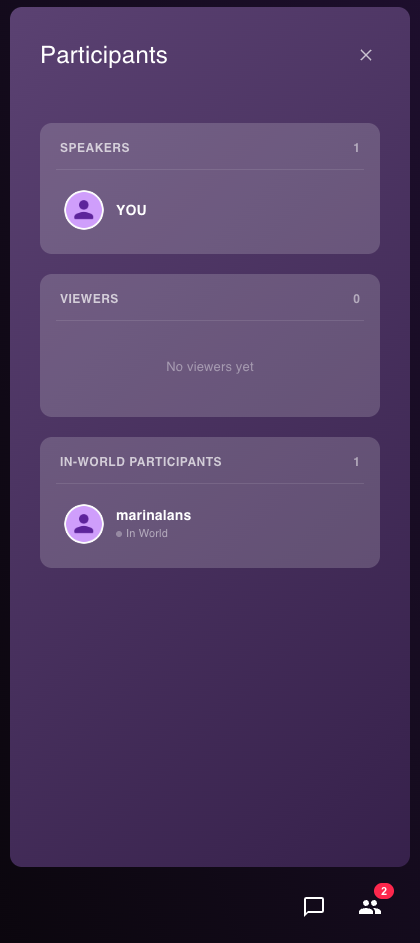
 在 **参与者** 选项卡中,你可以看到三个列表:
* **发言者**:当前正在向场景直播的人。
* **观众**:当前通过浏览器观看直播的人。
* **场景内参与者**:当前在场景内观看直播的玩家。
在 **参与者** 选项卡中,你可以看到三个列表:
* **发言者**:当前正在向场景直播的人。
* **观众**:当前通过浏览器观看直播的人。
* **场景内参与者**:当前在场景内观看直播的玩家。
 如果在 DCL Cast 会话中有多个发言者,场景内的玩家将听到所有发言者的声音,而视频会自动切换为显示当前发出声音的人,以始终显示正在发言的人。
如需覆盖此默认行为:
* 点击 **发言者** 场景管理面板上的按钮
如果在 DCL Cast 会话中有多个发言者,场景内的玩家将听到所有发言者的声音,而视频会自动切换为显示当前发出声音的人,以始终显示正在发言的人。
如需覆盖此默认行为:
* 点击 **发言者** 场景管理面板上的按钮
 * 选择其中一位发言者,并选择要展示的来源(该发言者的摄像头或屏幕)
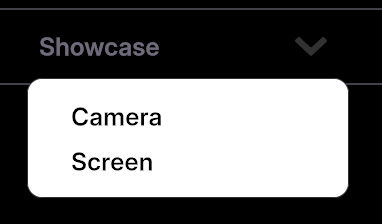 这将强制始终在屏幕上显示该来源,无论其他发言者是否在讲话。
{% hint style="info" %}
**📔 提示**:如果你也在场景内观看直播,可能会觉得同时在 DCL Cast 应用和 Decentraland 场景中重复播放的音频回声很刺耳。你可以通过切换屏幕左下角的扬声器图标,轻松将 DCL Cast 应用中的所有音频静音
这将强制始终在屏幕上显示该来源,无论其他发言者是否在讲话。
{% hint style="info" %}
**📔 提示**:如果你也在场景内观看直播,可能会觉得同时在 DCL Cast 应用和 Decentraland 场景中重复播放的音频回声很刺耳。你可以通过切换屏幕左下角的扬声器图标,轻松将 DCL Cast 应用中的所有音频静音
 否则,你可以在 Decentraland 设置中将音频静音。
{% endhint %}
### 共享演示文稿
你也可以共享幻灯片演示文稿的内容,作为另一种图像来源。
* 在场景内,点击 **共享演示文稿** 按钮。在 DCL Cast 选项卡中,从场景内点击。然后在 DCL Cast 应用中,点击 **共享屏幕** 按钮旁的下拉菜单并选择 **共享演示文稿**.
否则,你可以在 Decentraland 设置中将音频静音。
{% endhint %}
### 共享演示文稿
你也可以共享幻灯片演示文稿的内容,作为另一种图像来源。
* 在场景内,点击 **共享演示文稿** 按钮。在 DCL Cast 选项卡中,从场景内点击。然后在 DCL Cast 应用中,点击 **共享屏幕** 按钮旁的下拉菜单并选择 **共享演示文稿**.
 * 粘贴 Google 幻灯片链接、存放在 Drive 中的 .pdf 链接或类似来源,或者上传 .pdf 文件。
现在演示文稿将成为可选择在屏幕上显示的来源,同时仍能听到所有发言者的声音。
{% hint style="warning" %}
**📔 注意**:演示文稿文件必须小于 100 MB。Google 幻灯片演示文稿必须设置为 *公开*.
在 DCL Cast 会话中同一时间只能有一个活动演示文稿。
{% endhint %}
然后你可以切换幻灯片,甚至通过同时存在于 DCL Cast 应用和场景内管理工具界面中的按钮,播放或暂停嵌入这些幻灯片中的任何视频。
## 推流(高级)
要在你的场景中使用直播功能,你需要安装一个可输出到 RTMP 端点的流媒体软件(例如 [OBS](https://obsproject.com/), [XSplit](https://www.xsplit.com/), [StreamYard](https://streamyard.com/)).
{% hint style="warning" %}
**警告**:单人世界不支持直播。如果你的世界已 **单人模式** 在世界设置中启用(或 `fixedAdapter` 设置为 `"offline:offline"` 在 `scene.json`),请在设置直播前将其禁用。直播功能依赖通信层,而单人模式下该通信层会被禁用。
{% endhint %}
### 获取推流凭据
1. 在场景中打开管理界面(右上角图标)。

2. 在 **视频** 选项卡,切换到 **流媒体** 并点击 **获取流密钥**.

3. 复制 **RTMP 服务器** 和 **流密钥** 到你的流媒体软件中。

{% hint style="danger" %}
**❗警告**:同一场景一次只能有一人推流。完成推流后,点击 **停止推流** 在你的软件中释放通道。
{% endhint %}
### 开始并控制直播
1. 从你的软件开始推流。
2. 在管理界面中,点击 **激活** 以在场景中显示直播。
### 推流密钥
推流密钥按场景生成,有效期为 4 天(96 小时)。单次直播会话可连续运行最长 4 小时。

* 点击 **重置流密钥** 以撤销当前密钥并发放新的密钥。正在进行的直播将停止。
* 每个场景都有自己的推流地址和密钥。管理员可以与外部主播分享该密钥。
* 每个场景同一时间只能有一个直播处于活动状态;开始新的直播会覆盖当前直播。
{% hint style="danger" %}
**❗警告**:请将推流密钥视为机密。如有需要,可在不同演讲者之间重置密钥。
{% endhint %}
## 通过网址推流(高级)
你也可以通过将 Video Screen 配置为使用 **视频网址** 选项并粘贴流媒体网址来推流。
你应该可以粘贴指向大多数主流视频流媒体网站视频的网址。请注意这些平台的服务条款。
若要从本地计算机上的视频文件进行推流,最简单的方法是将该视频上传到公开的 Google Drive 并粘贴链接。
* 网址必须是 `https`。参见 [关于外部推流](/creator/content-creator-zh/chang-jing-sdk7/mei-ti/video-playing.md#about-external-streaming).
* 推荐的提供商包括 [Vimeo](https://vimeo.com/), [Bunny](https://bunny.net), [Livepeer Studio](https://livepeer.studio/) 和 [Serraform](https://serraform.gitbook.io/streaming-docs/guides/decentraland-playback).
* 编码器设置提示: [设置 OBS 以成功推流](/creator/content-creator-zh/chang-jing-sdk7/mei-ti/video-playing.md#setting-up-obs-for-successful-streaming).
---
# Agent Instructions
This documentation is published with GitBook. GitBook is the documentation platform designed so that both humans and AI agents can read, navigate, and reason over technical content effectively. Learn more at gitbook.com.
## Querying This Documentation
If you need additional information that is not directly available in this page, you can query the documentation by asking a question.
Perform an HTTP GET request on the following URL with the `ask` and `goal` query parameters:
```
GET https://docs.decentraland.org/creator/content-creator-zh/chang-jing-bian-ji-qi/shi-shi-yun-ying/live-streaming.md?ask=
* 粘贴 Google 幻灯片链接、存放在 Drive 中的 .pdf 链接或类似来源,或者上传 .pdf 文件。
现在演示文稿将成为可选择在屏幕上显示的来源,同时仍能听到所有发言者的声音。
{% hint style="warning" %}
**📔 注意**:演示文稿文件必须小于 100 MB。Google 幻灯片演示文稿必须设置为 *公开*.
在 DCL Cast 会话中同一时间只能有一个活动演示文稿。
{% endhint %}
然后你可以切换幻灯片,甚至通过同时存在于 DCL Cast 应用和场景内管理工具界面中的按钮,播放或暂停嵌入这些幻灯片中的任何视频。
## 推流(高级)
要在你的场景中使用直播功能,你需要安装一个可输出到 RTMP 端点的流媒体软件(例如 [OBS](https://obsproject.com/), [XSplit](https://www.xsplit.com/), [StreamYard](https://streamyard.com/)).
{% hint style="warning" %}
**警告**:单人世界不支持直播。如果你的世界已 **单人模式** 在世界设置中启用(或 `fixedAdapter` 设置为 `"offline:offline"` 在 `scene.json`),请在设置直播前将其禁用。直播功能依赖通信层,而单人模式下该通信层会被禁用。
{% endhint %}
### 获取推流凭据
1. 在场景中打开管理界面(右上角图标)。

2. 在 **视频** 选项卡,切换到 **流媒体** 并点击 **获取流密钥**.

3. 复制 **RTMP 服务器** 和 **流密钥** 到你的流媒体软件中。

{% hint style="danger" %}
**❗警告**:同一场景一次只能有一人推流。完成推流后,点击 **停止推流** 在你的软件中释放通道。
{% endhint %}
### 开始并控制直播
1. 从你的软件开始推流。
2. 在管理界面中,点击 **激活** 以在场景中显示直播。
### 推流密钥
推流密钥按场景生成,有效期为 4 天(96 小时)。单次直播会话可连续运行最长 4 小时。

* 点击 **重置流密钥** 以撤销当前密钥并发放新的密钥。正在进行的直播将停止。
* 每个场景都有自己的推流地址和密钥。管理员可以与外部主播分享该密钥。
* 每个场景同一时间只能有一个直播处于活动状态;开始新的直播会覆盖当前直播。
{% hint style="danger" %}
**❗警告**:请将推流密钥视为机密。如有需要,可在不同演讲者之间重置密钥。
{% endhint %}
## 通过网址推流(高级)
你也可以通过将 Video Screen 配置为使用 **视频网址** 选项并粘贴流媒体网址来推流。
你应该可以粘贴指向大多数主流视频流媒体网站视频的网址。请注意这些平台的服务条款。
若要从本地计算机上的视频文件进行推流,最简单的方法是将该视频上传到公开的 Google Drive 并粘贴链接。
* 网址必须是 `https`。参见 [关于外部推流](/creator/content-creator-zh/chang-jing-sdk7/mei-ti/video-playing.md#about-external-streaming).
* 推荐的提供商包括 [Vimeo](https://vimeo.com/), [Bunny](https://bunny.net), [Livepeer Studio](https://livepeer.studio/) 和 [Serraform](https://serraform.gitbook.io/streaming-docs/guides/decentraland-playback).
* 编码器设置提示: [设置 OBS 以成功推流](/creator/content-creator-zh/chang-jing-sdk7/mei-ti/video-playing.md#setting-up-obs-for-successful-streaming).
---
# Agent Instructions
This documentation is published with GitBook. GitBook is the documentation platform designed so that both humans and AI agents can read, navigate, and reason over technical content effectively. Learn more at gitbook.com.
## Querying This Documentation
If you need additional information that is not directly available in this page, you can query the documentation by asking a question.
Perform an HTTP GET request on the following URL with the `ask` and `goal` query parameters:
```
GET https://docs.decentraland.org/creator/content-creator-zh/chang-jing-bian-ji-qi/shi-shi-yun-ying/live-streaming.md?ask=