> For the complete documentation index, see [llms.txt](https://docs.decentraland.org/llms.txt). Markdown versions of documentation pages are available by appending `.md` to page URLs; this page is available as [Markdown](https://docs.decentraland.org/creator/scene-editor/build/spawn-areas.md).
# Spawn Areas
Using Spawn Areas to set the Spawning position & Spawn Camera position visually.
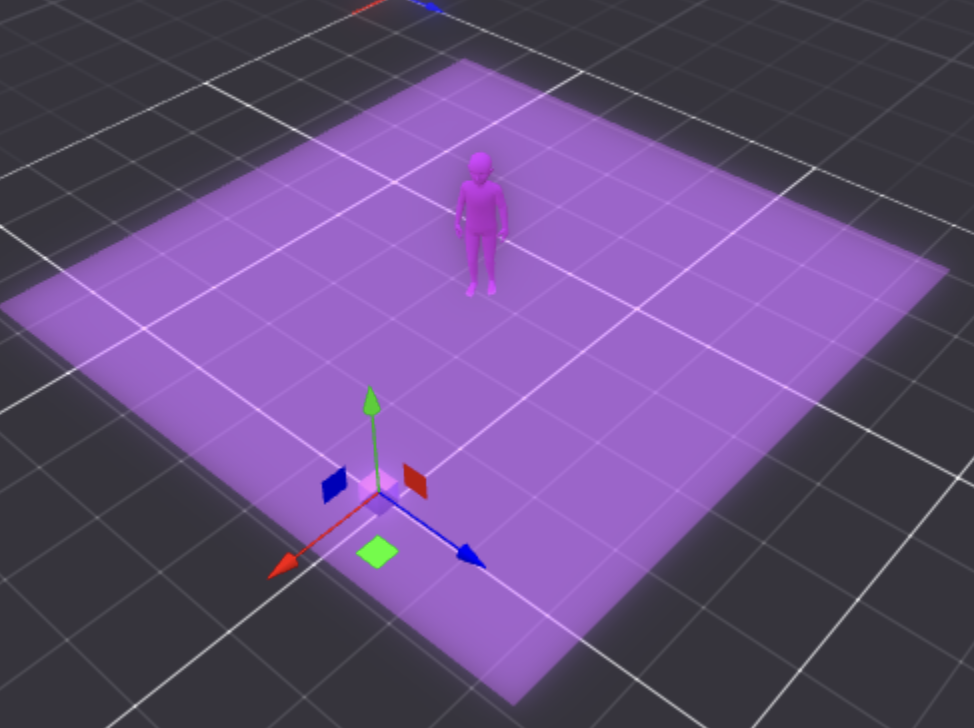
The creator can set the **Spawn Position** and **Spawn Camera Target** in the Creator Hub by editing a **Spawn Area** Entity.
This gives the creator a visual way of setting the Spawn Area and the direction the avatar will be facing when spawned as done with other objects in the scene.
Spawn Areas define where players appear when they access your scene directly, either by typing in the coordinates or teleporting. Your scene might have objects that can block players from moving if they happen to spawn right over them, like trees or stairs, or your scene might have an elevated terrain. It would be a bad experience for players if they spawned over something that doesn't let them move. That's why you have the option to set one or several spawn positions in ad-hoc locations.
{% hint style="warning" %}
**📔 Note**: All spawn points must be within the parcels that make up the scene. You can't spawn a player outside the space of these parcels.
{% endhint %}
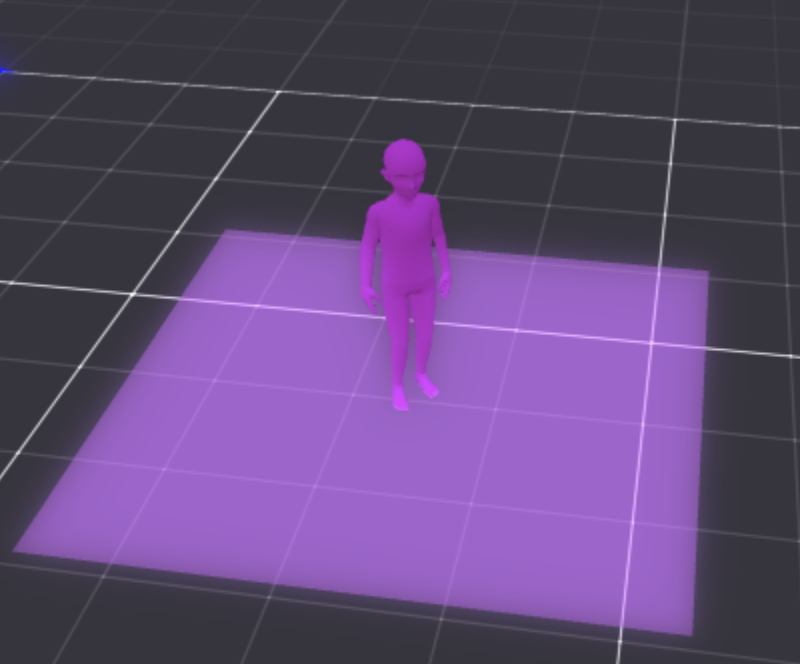 The Spawn Area is composed of two different entities that work together:
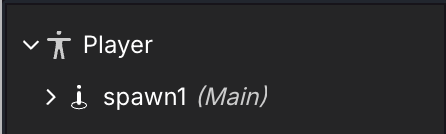
* **Spawn** Entity: can be found inside the **Player** Entity. Defines the actual Spawn Point of the Player.
The Spawn Area is composed of two different entities that work together:
* **Spawn** Entity: can be found inside the **Player** Entity. Defines the actual Spawn Point of the Player.
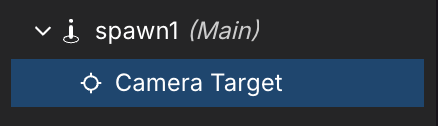
 * **Camera Target** Entity: can be found inside the **Spawn Area** Entity. Move it to the desired direction in which the Player will be spawned.
 ## Changing Spawn Areas
**Spawn Areas** and their **Camera Target** can be moved directly from the Scene Editor as with any other object in the scene, or modify its values manually (as with Transforms in other Entities).
### Parameters
When a Spawn Area is selected, the creator is able to see and set the following values on the Components section:
## Changing Spawn Areas
**Spawn Areas** and their **Camera Target** can be moved directly from the Scene Editor as with any other object in the scene, or modify its values manually (as with Transforms in other Entities).
### Parameters
When a Spawn Area is selected, the creator is able to see and set the following values on the Components section:
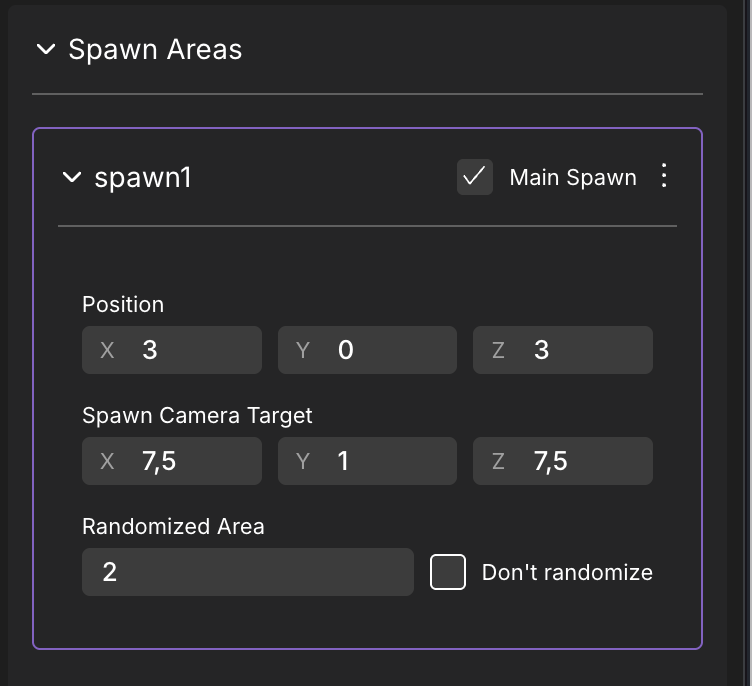 * **Position**: Avatar's Spawn Position. These are coordinates inside the scene, relative to the scene's origin, similar to what you'd use in a Transform component.
* **Spawn Camera Target**: The direction the camera (and the avatar) will be facing once spawned into the scene. Use this to have better control over the player's first impression when they jump into your scene.
* **Randomized Area**: Adds randomness to the Spawn Area in meters, enabling and disabling it with the **Don't randomize** toggle. When enabled, an area is rendered in the Scene Editor, showing the area in which the Player can randomly be spawned in. The random offset applies on both the X and Z axis, and prevents all players from appearing overlapping each other when they spawn, which looks especially bad in crowded scenes.
* **Position**: Avatar's Spawn Position. These are coordinates inside the scene, relative to the scene's origin, similar to what you'd use in a Transform component.
* **Spawn Camera Target**: The direction the camera (and the avatar) will be facing once spawned into the scene. Use this to have better control over the player's first impression when they jump into your scene.
* **Randomized Area**: Adds randomness to the Spawn Area in meters, enabling and disabling it with the **Don't randomize** toggle. When enabled, an area is rendered in the Scene Editor, showing the area in which the Player can randomly be spawned in. The random offset applies on both the X and Z axis, and prevents all players from appearing overlapping each other when they spawn, which looks especially bad in crowded scenes.
 ## Multiple Spawn Areas
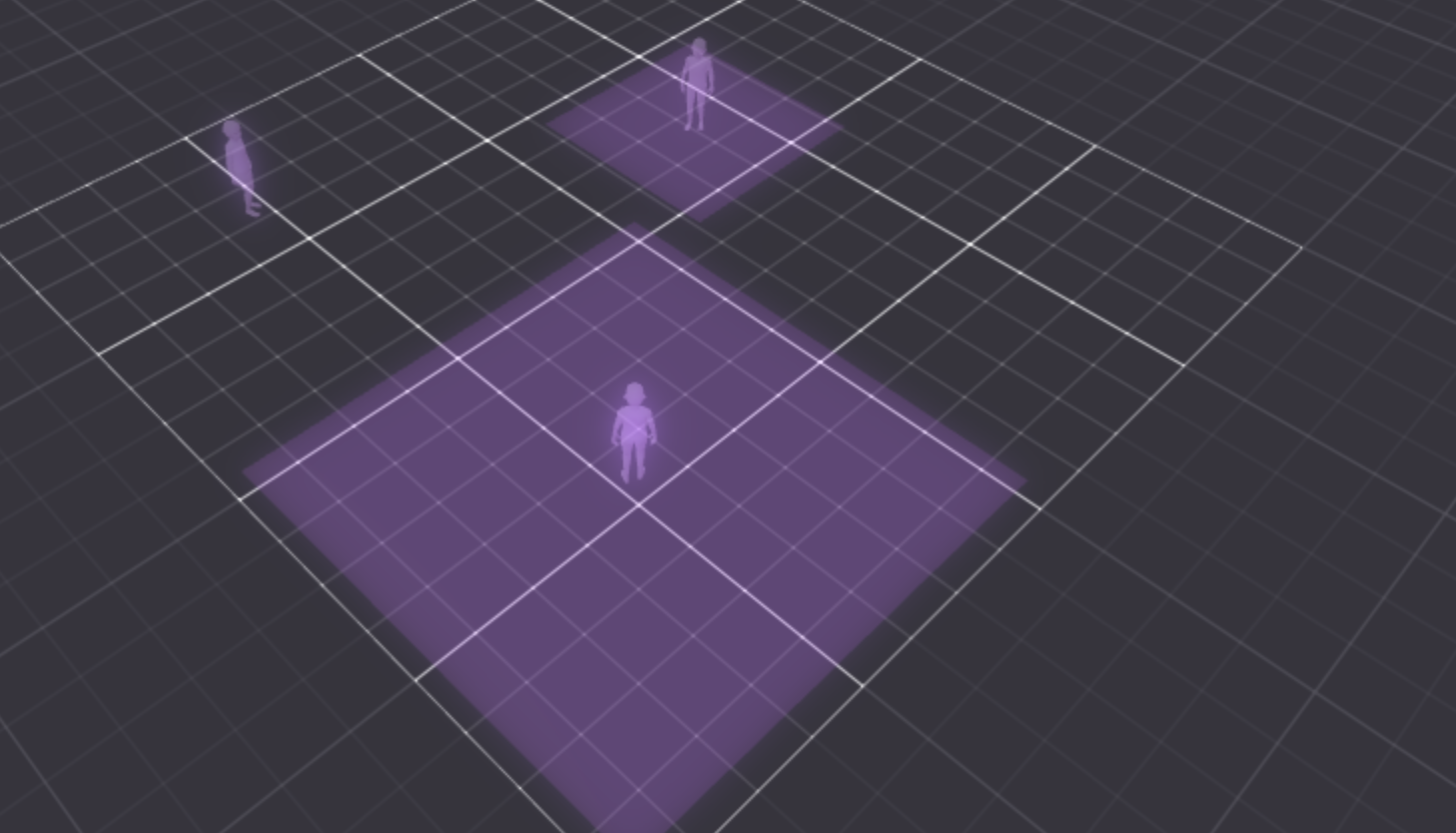 The creator can have multiple **Spawn Areas** defined. To create a new Spawn Area, follow these steps:
1. Select any Spawn Area, **spawn1** being the default.
2. All the Spawn Areas show on the right Panel. You can add new ones by clicking on **+ Add New Spawn Area**
The creator can have multiple **Spawn Areas** defined. To create a new Spawn Area, follow these steps:
1. Select any Spawn Area, **spawn1** being the default.
2. All the Spawn Areas show on the right Panel. You can add new ones by clicking on **+ Add New Spawn Area**
 .
.
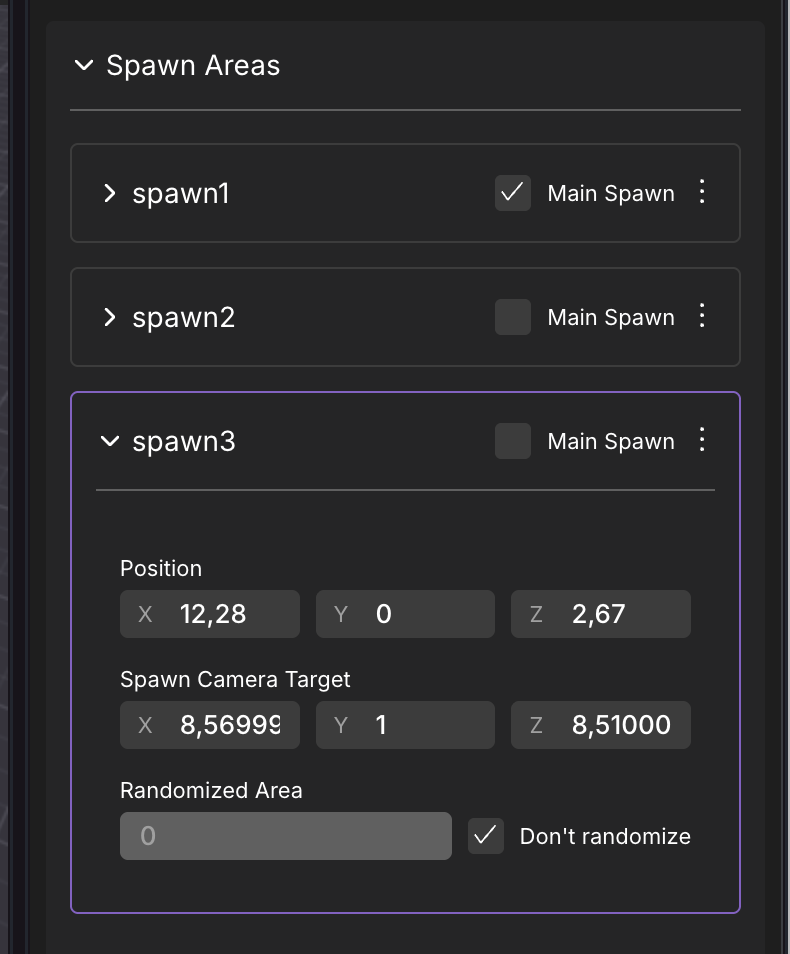 3. Enable the **Main Spawn**
 of the desired Spawn Area. If there are many Spawn areas toggled as **Main Spawn**, the player will randomly appear in one of them.
4. Preview the scene.
---
# Agent Instructions
This documentation is published with GitBook. GitBook is the documentation platform designed so that both humans and AI agents can read, navigate, and reason over technical content effectively. Learn more at gitbook.com.
## Querying This Documentation
If you need additional information that is not directly available in this page, you can query the documentation by asking a question.
Perform an HTTP GET request on the following URL with the `ask` and `goal` query parameters:
```
GET https://docs.decentraland.org/creator/scene-editor/build/spawn-areas.md?ask=&goal=
```
`ask` is the immediate question: it should be specific, self-contained, and written in natural language.
`goal` is what the user is ultimately trying to achieve, the reason they need the answer. Sharing it helps GitBook give you a better, more relevant answer. A goal is most helpful when it describes the outcome the user wants rather than restating the question. For example, with `ask=how do I create an API token`, a goal like `automate deployments from our CI pipeline` lets GitBook tailor the answer to that use case.
The response will contain a direct answer to the question and relevant excerpts and sources from the documentation.
Use this mechanism when the answer is not explicitly present in the current page, you need clarification or additional context, or you want to retrieve related documentation sections.
of the desired Spawn Area. If there are many Spawn areas toggled as **Main Spawn**, the player will randomly appear in one of them.
4. Preview the scene.
---
# Agent Instructions
This documentation is published with GitBook. GitBook is the documentation platform designed so that both humans and AI agents can read, navigate, and reason over technical content effectively. Learn more at gitbook.com.
## Querying This Documentation
If you need additional information that is not directly available in this page, you can query the documentation by asking a question.
Perform an HTTP GET request on the following URL with the `ask` and `goal` query parameters:
```
GET https://docs.decentraland.org/creator/scene-editor/build/spawn-areas.md?ask=&goal=
```
`ask` is the immediate question: it should be specific, self-contained, and written in natural language.
`goal` is what the user is ultimately trying to achieve, the reason they need the answer. Sharing it helps GitBook give you a better, more relevant answer. A goal is most helpful when it describes the outcome the user wants rather than restating the question. For example, with `ask=how do I create an API token`, a goal like `automate deployments from our CI pipeline` lets GitBook tailor the answer to that use case.
The response will contain a direct answer to the question and relevant excerpts and sources from the documentation.
Use this mechanism when the answer is not explicitly present in the current page, you need clarification or additional context, or you want to retrieve related documentation sections.