 Streaming works in Worlds and Genesis City, with no audience limits on the scene side.
## Configure the scene
The following steps are common to both DCL Cast and Stream methods:
1. Add a **Video Screen** smart item to your scene.

2. Add an **Admin Tools** smart item and enable the **Video Screens** section. Select each screen from the dropdown and give it a friendly name for the admin UI.

3. Publish your scene (World or Genesis City) and enter as a user with admin permissions.

Once your scene is published, you can enter as a user with admin permissions and configure the streaming settings.
{% hint style="info" %}
**💡 Tip**: If you add multiple Video Screens to show the same video, configure all but one's source to point to the same video player, see [Multiple Video Screens](/creator/scene-editor/interactivity/video-screen.md#multiple-video-screens) for more details.
{% endhint %}
## DCL Cast (easy)
### Sharing access to the app
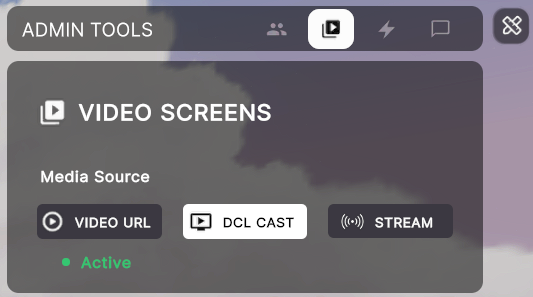
Enter your published scene as an admin user, and open the admin panel. Select the **Video** tab, then select the **DCL Cast** functionality.
Streaming works in Worlds and Genesis City, with no audience limits on the scene side.
## Configure the scene
The following steps are common to both DCL Cast and Stream methods:
1. Add a **Video Screen** smart item to your scene.

2. Add an **Admin Tools** smart item and enable the **Video Screens** section. Select each screen from the dropdown and give it a friendly name for the admin UI.

3. Publish your scene (World or Genesis City) and enter as a user with admin permissions.

Once your scene is published, you can enter as a user with admin permissions and configure the streaming settings.
{% hint style="info" %}
**💡 Tip**: If you add multiple Video Screens to show the same video, configure all but one's source to point to the same video player, see [Multiple Video Screens](/creator/scene-editor/interactivity/video-screen.md#multiple-video-screens) for more details.
{% endhint %}
## DCL Cast (easy)
### Sharing access to the app
Enter your published scene as an admin user, and open the admin panel. Select the **Video** tab, then select the **DCL Cast** functionality.
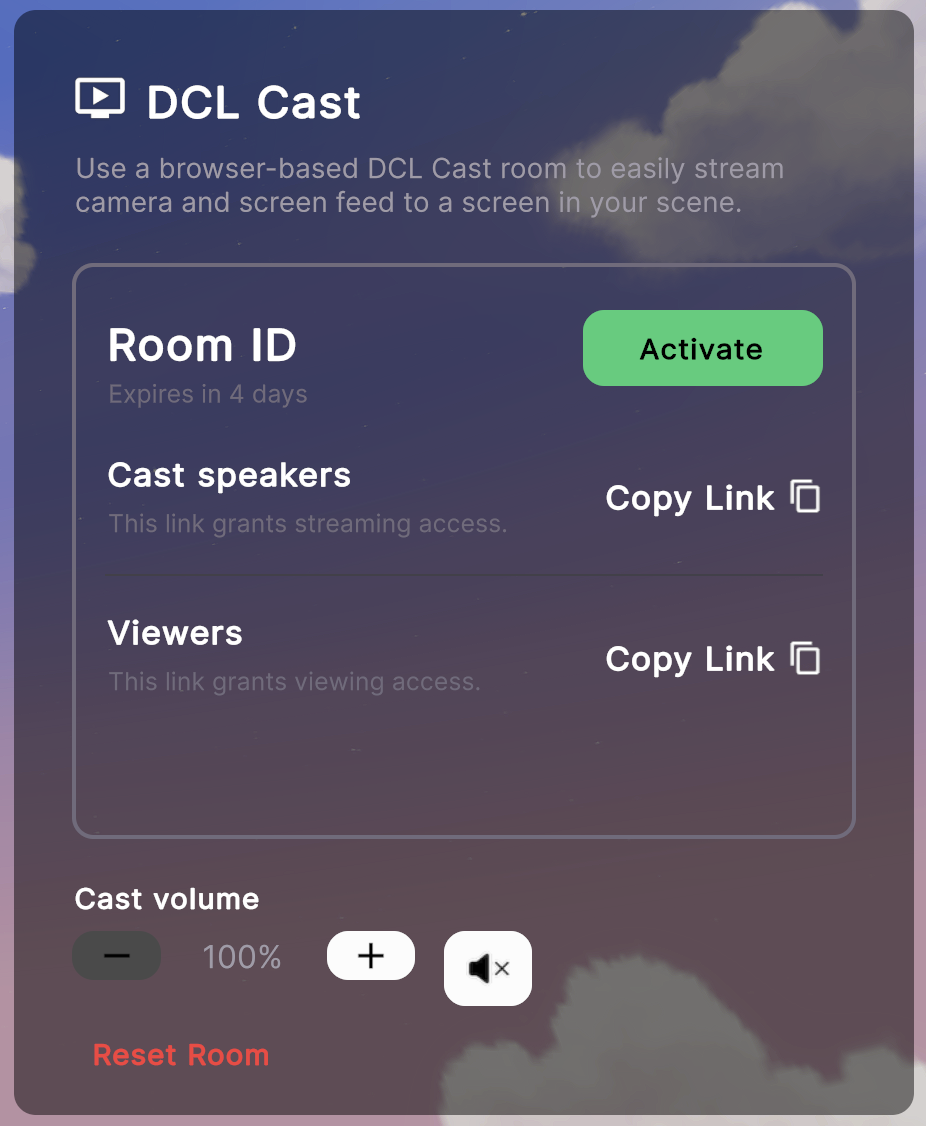 You'll see two links that you can copy and share with others.
* **Cast Speakers**: This link is for the speakers to use to cast their video to the scene.
You'll see two links that you can copy and share with others.
* **Cast Speakers**: This link is for the speakers to use to cast their video to the scene.
❗Warning: Treat the streaming link as a secret, only share it with people you trust. Reset the link between presenters if needed.
When finished streaming, close the DCL Cast browser tab to free the channel.
 If for any reason you need to reset the room, click the **Reset Room** button to generate a new one. Anyone who's currently streaming will be disconnected.
 ### Using the DCL Cast app
When someone pastes the speaker link into a browser, they'll see a screen like this:
### Using the DCL Cast app
When someone pastes the speaker link into a browser, they'll see a screen like this:
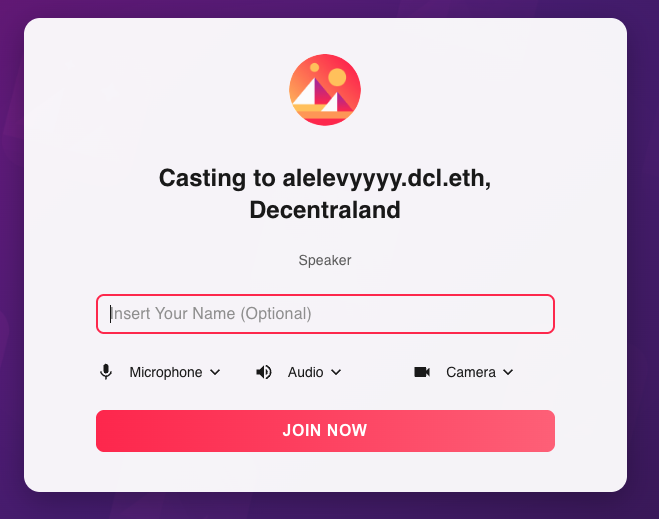 The browser will ask for permission to share your camera and microphone. You can also configure the different input devices to use for the stream.
{% hint style="info" %}
**📔 Tip**: Use Google Chrome or a browser built on the Chrome engine. These browsers offer the functionality to easily share both video and audio directly from a browser tab.
{% endhint %}
Users can input a name (doesn't need to match their Decentraland username) and click the **Join Now** button to start streaming.
Once streaming, the app is similar to various familiar video conferencing apps, with buttons to mute/unmute, share camera and screen, and a chat interface.
The chat is read-only, and listens to all messages sent by players inside the scene in Decentraland. This is great to keep in touch with the audience, even if you're streaming from a different device.
The browser will ask for permission to share your camera and microphone. You can also configure the different input devices to use for the stream.
{% hint style="info" %}
**📔 Tip**: Use Google Chrome or a browser built on the Chrome engine. These browsers offer the functionality to easily share both video and audio directly from a browser tab.
{% endhint %}
Users can input a name (doesn't need to match their Decentraland username) and click the **Join Now** button to start streaming.
Once streaming, the app is similar to various familiar video conferencing apps, with buttons to mute/unmute, share camera and screen, and a chat interface.
The chat is read-only, and listens to all messages sent by players inside the scene in Decentraland. This is great to keep in touch with the audience, even if you're streaming from a different device.
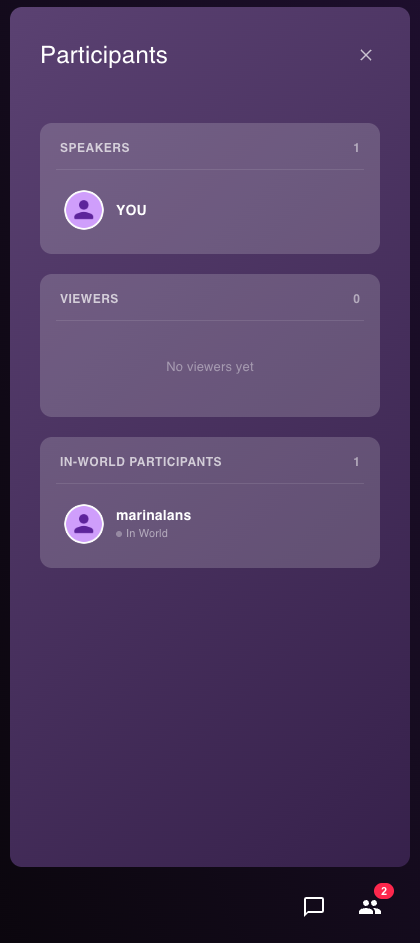
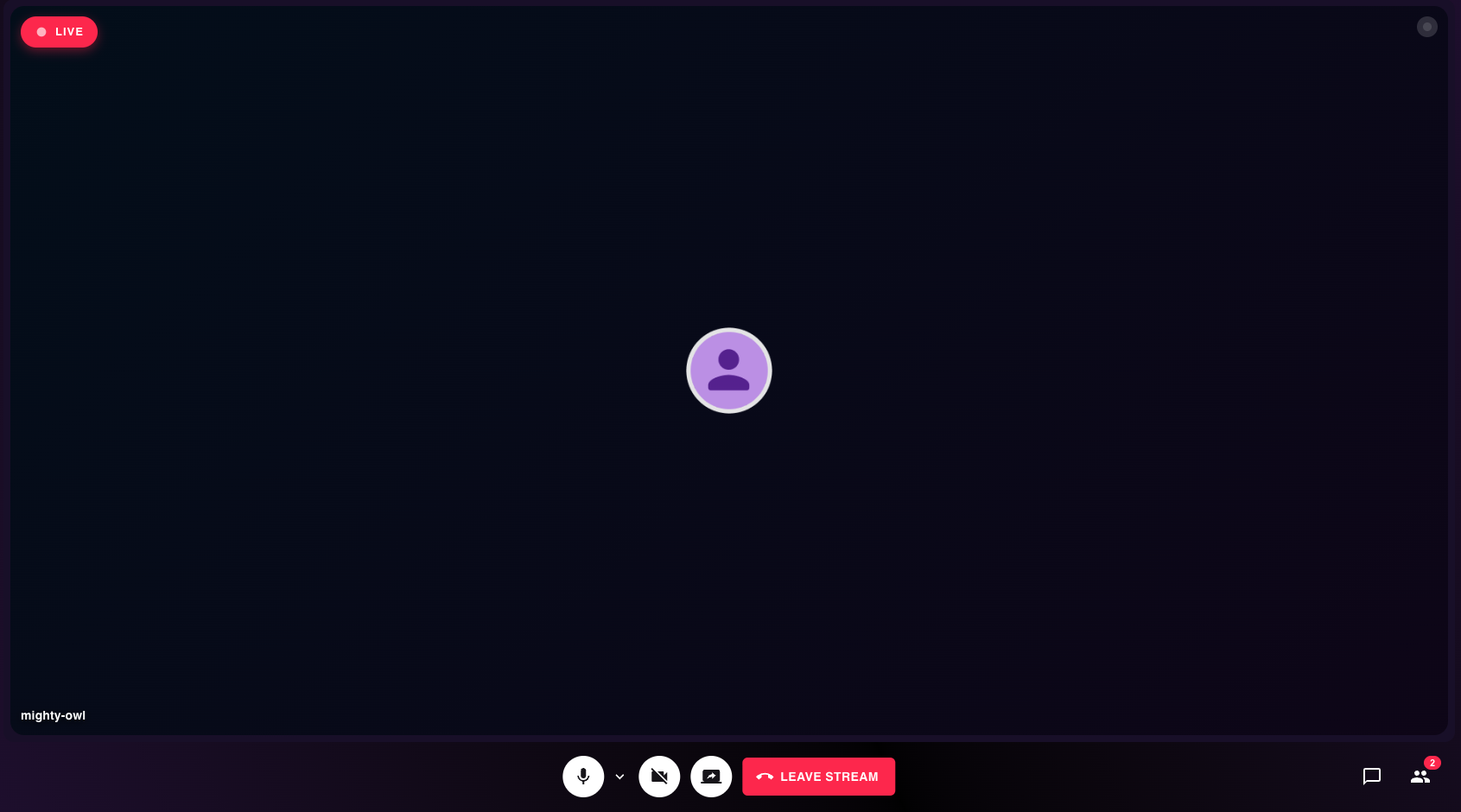 On the **Participants** tab you can see three lists:
* **Speakers**: The people who are currently streaming to the scene.
* **Viewers**: The people who are currently watching the stream from a browser.
* **In-world participants**: The players who are currently inside the scene, watching the stream in-world.
On the **Participants** tab you can see three lists:
* **Speakers**: The people who are currently streaming to the scene.
* **Viewers**: The people who are currently watching the stream from a browser.
* **In-world participants**: The players who are currently inside the scene, watching the stream in-world.
 If multiple speakers are present in a DCL Cast session, players in-world will hear the voices of all speakers, and the see the video will automatically switch to show whoever is currently emitting sound, to always show who's speaking.
To override this default behavior:
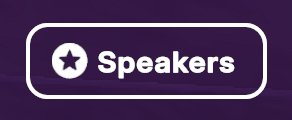
* Click the **Speakers** button on the scene admin panel
If multiple speakers are present in a DCL Cast session, players in-world will hear the voices of all speakers, and the see the video will automatically switch to show whoever is currently emitting sound, to always show who's speaking.
To override this default behavior:
* Click the **Speakers** button on the scene admin panel
 * Pick one of the speakers and select a source to showcase (either that speaker's camera or screen)
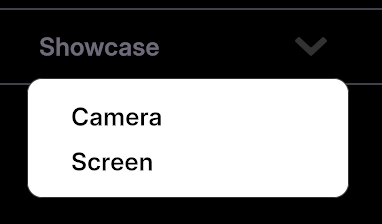 This will force this source to be always shown on screen, regardless of if other speakers are talking.
{% hint style="info" %}
**📔 Tip**: If you're also in-world watching the stream, you may find it jarring to hear echo from audio repeated both in the DCL Cast app and in the Decentraland scene. You can easily mute all audio from the DCL Cast app by toggling the speaker icon on the bottom-left of the screen
This will force this source to be always shown on screen, regardless of if other speakers are talking.
{% hint style="info" %}
**📔 Tip**: If you're also in-world watching the stream, you may find it jarring to hear echo from audio repeated both in the DCL Cast app and in the Decentraland scene. You can easily mute all audio from the DCL Cast app by toggling the speaker icon on the bottom-left of the screen
 Otherwise you can mute audio in the Decentraland settings.
{% endhint %}
### Share presentations
You can also share the contents of a slide presentation as an alternative source of images.
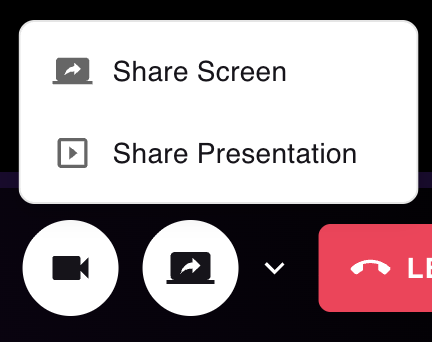
* From in-world, click the **Share presentation** button in-world in the DCL Cast tab. From the DCL Cast app, click the dropdown next to the **Share Screen** button and select **Share presentation**.
Otherwise you can mute audio in the Decentraland settings.
{% endhint %}
### Share presentations
You can also share the contents of a slide presentation as an alternative source of images.
* From in-world, click the **Share presentation** button in-world in the DCL Cast tab. From the DCL Cast app, click the dropdown next to the **Share Screen** button and select **Share presentation**.
 * Paste a Google slides link, a link to a .pdf hosted in Drive or a similar source, or upload a .pdf file.
The presentation will now be a source that can be selected to show on screen, while the voices of all speakers are still heard.
{% hint style="warning" %}
**📔 Note**: Presentation files must be under 100 MB. Google slides presentations must be set to *public*.
There can only be one active presentation at a time in a DCL Cast session.
{% endhint %}
You can then switch slides, or even play and pause any videos that are embedded in these slides by pressing buttons that exist both in the DCL Cast app and in-world in the Admin Tools UI.
## Stream (advanced)
To use the Live Streaming feature on your scene you'll need to install a streaming software that can output to an RTMP endpoint (e.g. [OBS](https://obsproject.com/), [XSplit](https://www.xsplit.com/), [StreamYard](https://streamyard.com/)).
{% hint style="warning" %}
**Warning**: Live streaming is not supported in Single Player worlds. If your world has **Single Player** enabled in World Settings (or `fixedAdapter` set to `"offline:offline"` in `scene.json`), disable it before setting up streaming. The streaming feature relies on the communications layer, which is disabled in Single Player mode.
{% endhint %}
### Get stream credentials
1. Open the Admin UI in the scene (top‑right icon).

2. In the **Video** tab, switch to **Stream** and click **Get Stream Key**.

3. Copy the **RTMP Server** and **Stream Key** into your streaming software.

{% hint style="danger" %}
**❗Warning**: Only one person can stream to a scene at a time. When finished streaming, click **Stop Streaming** in your software to free the channel.
{% endhint %}
### Start and control the stream
1. Start streaming from your software.
2. In the Admin UI, click **Activate** to show the stream in the scene.
### Stream keys
Stream keys are generated per scene and are valid for 4 days (96 hours). A single live session can run up to 4 hours continuously.

* Click **Reset Stream Key** to revoke the current key and issue a new one. Ongoing streams will stop.
* Each scene has its own streaming address and key. Admins can share the key with external streamers.
* Only one stream can be active per scene at a time; starting a new one will overwrite the current stream.
{% hint style="danger" %}
**❗Warning**: Treat stream keys as secrets. Reset the key between presenters if needed.
{% endhint %}
## Streaming from URL (advanced)
You can also stream by configuring the Video Screen to use the option **Video URL** and pasting a stream URL.
You should be able to paste a URL pointing to a video from most popular video streaming sites. Be mindful of the terms of service with these platforms.
To stream from a video file you have on your local machine, the easiest path is to upload this video to a public Google Drive and paste the link.
* The URL must be `https`. See [About External Streaming](/creator/scenes-sdk7/media/video-playing.md#about-external-streaming).
* Recommended providers include [Vimeo](https://vimeo.com/), [Bunny](https://bunny.net), [Livepeer Studio](https://livepeer.studio/) and [Serraform](https://serraform.gitbook.io/streaming-docs/guides/decentraland-playback).
* Tips for encoder setup: [Setting up OBS for successful streaming](/creator/scenes-sdk7/media/video-playing.md#setting-up-obs-for-successful-streaming).
---
# Agent Instructions
This documentation is published with GitBook. GitBook is the documentation platform designed so that both humans and AI agents can read, navigate, and reason over technical content effectively. Learn more at gitbook.com.
## Querying This Documentation
If you need additional information that is not directly available in this page, you can query the documentation by asking a question.
Perform an HTTP GET request on the following URL with the `ask` and `goal` query parameters:
```
GET https://docs.decentraland.org/creator/scene-editor/operate-live/live-streaming.md?ask=
* Paste a Google slides link, a link to a .pdf hosted in Drive or a similar source, or upload a .pdf file.
The presentation will now be a source that can be selected to show on screen, while the voices of all speakers are still heard.
{% hint style="warning" %}
**📔 Note**: Presentation files must be under 100 MB. Google slides presentations must be set to *public*.
There can only be one active presentation at a time in a DCL Cast session.
{% endhint %}
You can then switch slides, or even play and pause any videos that are embedded in these slides by pressing buttons that exist both in the DCL Cast app and in-world in the Admin Tools UI.
## Stream (advanced)
To use the Live Streaming feature on your scene you'll need to install a streaming software that can output to an RTMP endpoint (e.g. [OBS](https://obsproject.com/), [XSplit](https://www.xsplit.com/), [StreamYard](https://streamyard.com/)).
{% hint style="warning" %}
**Warning**: Live streaming is not supported in Single Player worlds. If your world has **Single Player** enabled in World Settings (or `fixedAdapter` set to `"offline:offline"` in `scene.json`), disable it before setting up streaming. The streaming feature relies on the communications layer, which is disabled in Single Player mode.
{% endhint %}
### Get stream credentials
1. Open the Admin UI in the scene (top‑right icon).

2. In the **Video** tab, switch to **Stream** and click **Get Stream Key**.

3. Copy the **RTMP Server** and **Stream Key** into your streaming software.

{% hint style="danger" %}
**❗Warning**: Only one person can stream to a scene at a time. When finished streaming, click **Stop Streaming** in your software to free the channel.
{% endhint %}
### Start and control the stream
1. Start streaming from your software.
2. In the Admin UI, click **Activate** to show the stream in the scene.
### Stream keys
Stream keys are generated per scene and are valid for 4 days (96 hours). A single live session can run up to 4 hours continuously.

* Click **Reset Stream Key** to revoke the current key and issue a new one. Ongoing streams will stop.
* Each scene has its own streaming address and key. Admins can share the key with external streamers.
* Only one stream can be active per scene at a time; starting a new one will overwrite the current stream.
{% hint style="danger" %}
**❗Warning**: Treat stream keys as secrets. Reset the key between presenters if needed.
{% endhint %}
## Streaming from URL (advanced)
You can also stream by configuring the Video Screen to use the option **Video URL** and pasting a stream URL.
You should be able to paste a URL pointing to a video from most popular video streaming sites. Be mindful of the terms of service with these platforms.
To stream from a video file you have on your local machine, the easiest path is to upload this video to a public Google Drive and paste the link.
* The URL must be `https`. See [About External Streaming](/creator/scenes-sdk7/media/video-playing.md#about-external-streaming).
* Recommended providers include [Vimeo](https://vimeo.com/), [Bunny](https://bunny.net), [Livepeer Studio](https://livepeer.studio/) and [Serraform](https://serraform.gitbook.io/streaming-docs/guides/decentraland-playback).
* Tips for encoder setup: [Setting up OBS for successful streaming](/creator/scenes-sdk7/media/video-playing.md#setting-up-obs-for-successful-streaming).
---
# Agent Instructions
This documentation is published with GitBook. GitBook is the documentation platform designed so that both humans and AI agents can read, navigate, and reason over technical content effectively. Learn more at gitbook.com.
## Querying This Documentation
If you need additional information that is not directly available in this page, you can query the documentation by asking a question.
Perform an HTTP GET request on the following URL with the `ask` and `goal` query parameters:
```
GET https://docs.decentraland.org/creator/scene-editor/operate-live/live-streaming.md?ask=