> For the complete documentation index, see [llms.txt](https://docs.decentraland.org/llms.txt). Markdown versions of documentation pages are available by appending `.md` to page URLs; this page is available as [Markdown](https://docs.decentraland.org/creator/scene-editor/get-started/manage-scenes.md).
# Manage scenes
Managing your scene projects
The **Scenes** tab lists each of your available scenes as a card. Open the card to edit that scene, from there you can preview it or publish it too.

## Create a scene
Click the arrow next to the **Create** button and select **New Scene** to create a new scene. You can also click the **New Scene** card at the start of the scene list.

You'll be asked to name your scene, and to choose a location to save it. The default location is the Scenes folder set in the app preferences, see [Change the scenes folder](#change-the-scenes-folder).

Once you confirm these steps, the scene project will be created. This may take a minute or two, as it downloads dependencies and sets up a folder on your local machine with everything it needs. When done, your scene will be opened in the [Scene Editor](/creator/scene-editor/get-started/scene-editor-essentials.md).
### Start from a template
To start from a ready-made scene instead of an empty one, click **Templates** on the **Scenes** tab, or scroll to the **Templates** row on the **Home** tab. Templates range from an **Empty Scene** to full scenes like an art gallery or a nightclub. You can filter them by difficulty. Click a template card to create a new scene based on it, then name it and choose a location as you would for an empty scene.

### Scene card options
Click the three dots on a scene's card to see more options.

Click **Duplicate** to make a copy of an existing scene.
To rename your scene's display name, open it and click the pencil icon to change the **Name** field and other properties.
To rename the scene's folder on disk, click the three dots on the scene's card and select **Rename Folder**. Enter the new folder name and confirm. The folder name must be valid for your operating system and must not collide with an existing folder in the same location.
## Import a scene
The scene manager displays the scenes it finds in the default path on your machine.
To add a scene that is elsewhere on your local disk, click **Import scene** and find the path to the project folder. The imported scene will now be available as a new card in the scene manager screen.
The imported scene does not get moved in your local disk.
{% hint style="warning" %}
**📔 Note**: Do not manually rename or move the folder of an imported scene directly from your file manager. The Scene Editor will no longer be able to find the imported scene in its new path.
{% endhint %}
Scenes you created on the older web editor are stored in the cloud. To work on these scenes from the desktop Scene Editor, you must export the scene from the Web Editor, unzip it into a folder, and then import it on the desktop Scene Editor. See [Migrate from Web Editor](/creator/scene-editor/get-started/migrate-from-web.md) for more details.
## Delete a scene
In the scene selector screen, press the *three dots* icon and select *Delete from My Scenes*.
This removes the scene from your Scene Editor home screen. By default it doesn't delete the files from your machine, but the confirmation dialog includes a checkbox to **also delete the scene's files from your computer**.

## Change the scenes folder
By default, projects created via the Scene Editor are kept inside a `Scenes` folder in the Creator Hub's application data directory. To change this location:
1. Click the Creator Hub logo in the top-left corner to open the main menu, then click **Settings**.
2. In the **SCENES** tab, click the folder icon next to **Scenes Folder** and pick a new folder.

The same tab also controls what happens when a new version of the scene dependencies is available: update all your scenes automatically, get notified, or do nothing.
To navigate to a project's folder, click the three dots on its card and select **Open Folder Location**.
## Managing Worlds
If you own a Decentraland NAME or ENS domain, you can publish scenes to your [Decentraland World](/creator/scenes-sdk7/publishing/publishing-options.md#decentraland-worlds). Worlds appear in the Scene Editor just like regular scenes, and you can publish to them using the same **Publish** button.
A World has its own metadata (name, description, and thumbnail), separate from the metadata of each scene published to it. In Worlds with a single scene it's kept in sync with the scene's metadata automatically, in Worlds with multiple scenes it can only be edited in the **Manage** tab. See [World metadata vs scene metadata](/creator/scene-editor/publish/publish-scene.md#world-metadata-vs-scene-metadata).
### Visualizing storage space
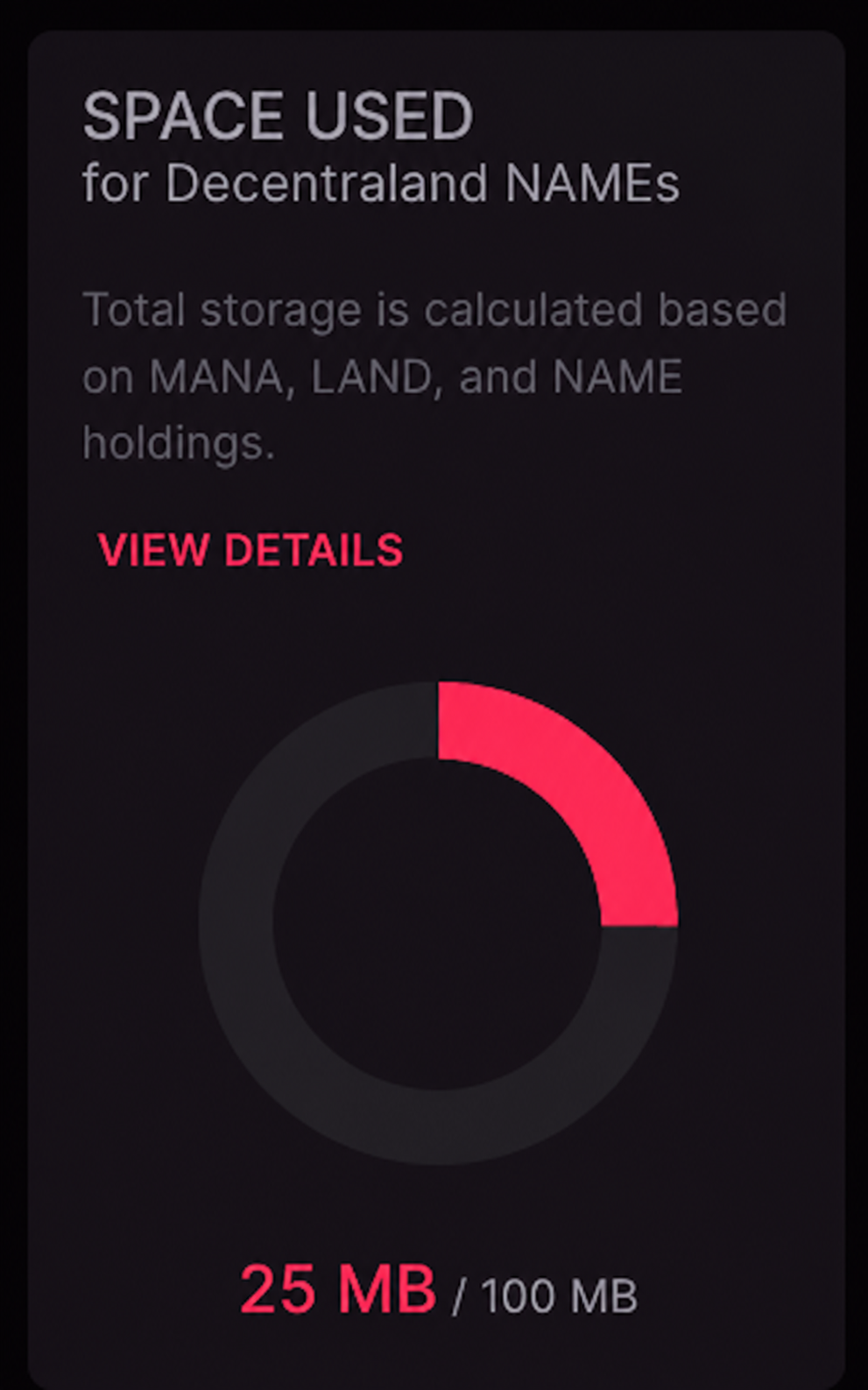
Scenes published to Worlds count against a storage budget that is shared across all the Worlds owned by your wallet. The budget is calculated from your holdings: each Decentraland NAME or LAND parcel you own grants 100 MB, and every 2,000 MANA held in your wallet grants an additional 100 MB.
You can check your used and remaining storage budget in two places:
* The **Manage** section of the Creator Hub shows how much of your total budget is used and your total storage capacity. Click **View Details** for a breakdown of how your MANA, LAND, and NAME holdings add up.
 * The **Worlds** tab of the [Builder](https://decentraland.org/builder/worlds).
### Undeploying scenes
If you need to free up storage space, you can undeploy scenes from the World Content Server. This can be done through the Builder interface, which allows you to easily undeploy scenes to release storage space.
For Decentraland NAME holders, if you exceed your allocated storage space (for instance, through asset sales or transfers to another wallet), you will be provided with a 48-hour window to address the situation. Failure to do so will result in your Worlds becoming inaccessible after this grace period.
To regain access to a blocked World, you can either:
* Acquire more MANA, Decentraland NAMEs, or LANDS to increase your storage capacity
* Undeploy existing scenes from the World Content Server to free up storage space
See [Worlds size limits](/creator/scenes-sdk7/kinds-of-projects/kinds-of-project.md#size-limits) for detailed information on how storage capacity is calculated.
---
# Agent Instructions
This documentation is published with GitBook. GitBook is the documentation platform designed so that both humans and AI agents can read, navigate, and reason over technical content effectively. Learn more at gitbook.com.
## Querying This Documentation
If you need additional information that is not directly available in this page, you can query the documentation by asking a question.
Perform an HTTP GET request on the following URL with the `ask` and `goal` query parameters:
```
GET https://docs.decentraland.org/creator/scene-editor/get-started/manage-scenes.md?ask=&goal=
```
`ask` is the immediate question: it should be specific, self-contained, and written in natural language.
`goal` is what the user is ultimately trying to achieve, the reason they need the answer. Sharing it helps GitBook give you a better, more relevant answer. A goal is most helpful when it describes the outcome the user wants rather than restating the question. For example, with `ask=how do I create an API token`, a goal like `automate deployments from our CI pipeline` lets GitBook tailor the answer to that use case.
The response will contain a direct answer to the question and relevant excerpts and sources from the documentation.
Use this mechanism when the answer is not explicitly present in the current page, you need clarification or additional context, or you want to retrieve related documentation sections.
* The **Worlds** tab of the [Builder](https://decentraland.org/builder/worlds).
### Undeploying scenes
If you need to free up storage space, you can undeploy scenes from the World Content Server. This can be done through the Builder interface, which allows you to easily undeploy scenes to release storage space.
For Decentraland NAME holders, if you exceed your allocated storage space (for instance, through asset sales or transfers to another wallet), you will be provided with a 48-hour window to address the situation. Failure to do so will result in your Worlds becoming inaccessible after this grace period.
To regain access to a blocked World, you can either:
* Acquire more MANA, Decentraland NAMEs, or LANDS to increase your storage capacity
* Undeploy existing scenes from the World Content Server to free up storage space
See [Worlds size limits](/creator/scenes-sdk7/kinds-of-projects/kinds-of-project.md#size-limits) for detailed information on how storage capacity is calculated.
---
# Agent Instructions
This documentation is published with GitBook. GitBook is the documentation platform designed so that both humans and AI agents can read, navigate, and reason over technical content effectively. Learn more at gitbook.com.
## Querying This Documentation
If you need additional information that is not directly available in this page, you can query the documentation by asking a question.
Perform an HTTP GET request on the following URL with the `ask` and `goal` query parameters:
```
GET https://docs.decentraland.org/creator/scene-editor/get-started/manage-scenes.md?ask=&goal=
```
`ask` is the immediate question: it should be specific, self-contained, and written in natural language.
`goal` is what the user is ultimately trying to achieve, the reason they need the answer. Sharing it helps GitBook give you a better, more relevant answer. A goal is most helpful when it describes the outcome the user wants rather than restating the question. For example, with `ask=how do I create an API token`, a goal like `automate deployments from our CI pipeline` lets GitBook tailor the answer to that use case.
The response will contain a direct answer to the question and relevant excerpts and sources from the documentation.
Use this mechanism when the answer is not explicitly present in the current page, you need clarification or additional context, or you want to retrieve related documentation sections.